This setup guide walks through installing the HC Capture Intel extension on any Chromium-based browser (Google Chrome, Brave, Microsoft Edge, Opera, Vivaldi), connecting it to your account, and capturing your first threat highlight.
Auto-capture
URL, page title, and timestamp saved with every highlight.
Context
Attach notes & tags directly to captured evidence.
Linking
Connect findings to threat actors, malware, and custom entities.
Install the extension
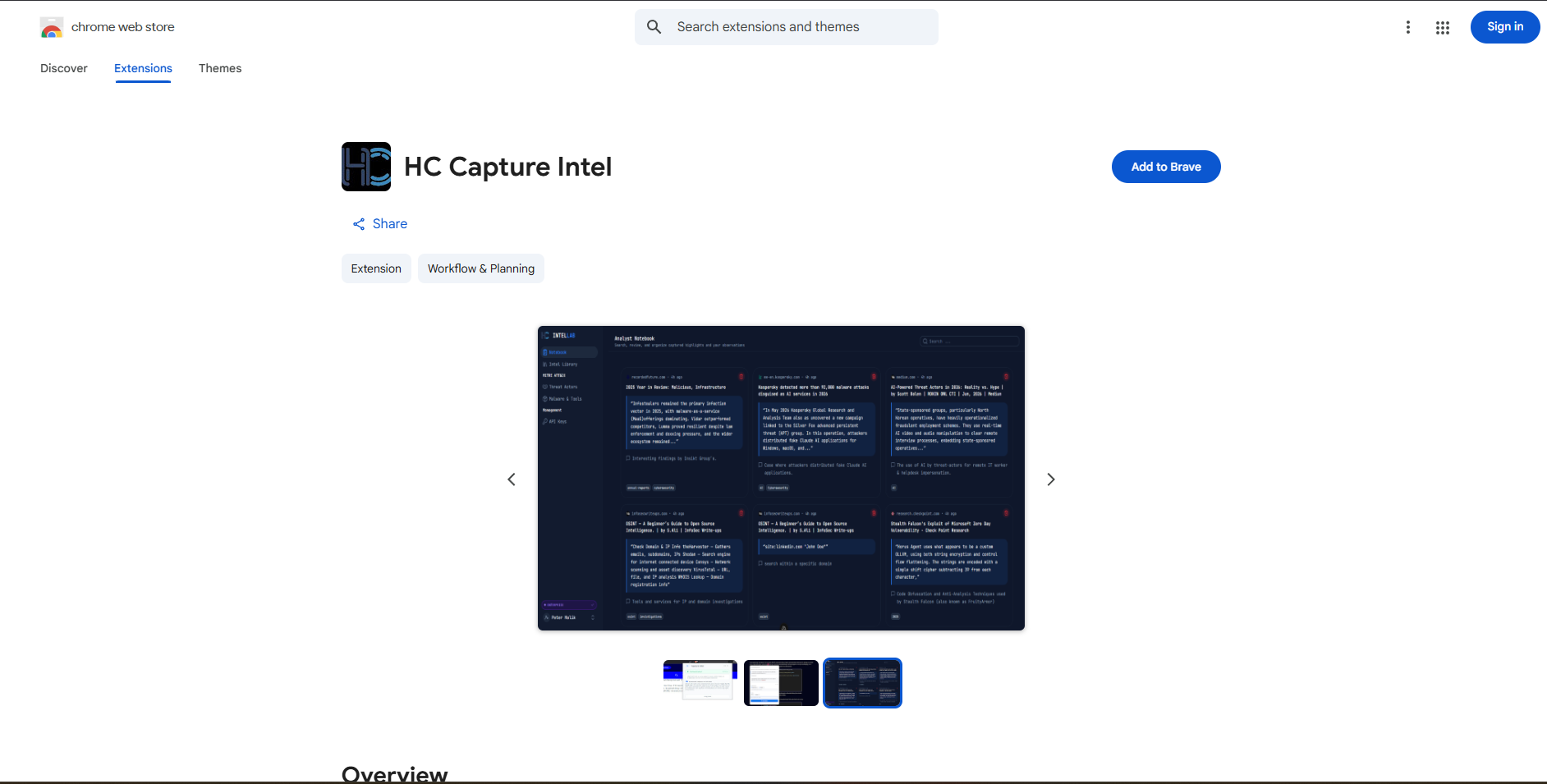
Get HC Capture Intel directly from the Web Store and pin it to your browser toolbar. Fully supported on Google Chrome, Brave, Microsoft Edge, Opera, and Vivaldi.
- Open the Chrome Web Store listing for HC Capture Intel in your Chromium browser.
- Click Add to Chrome (or Add to Brave / Edge).
- In the confirmation popup, click Add extension.
- Once installed, the HC Capture Intel icon will appear in your browser extension toolbar.
Create your API key
HC Capture Intel requires an API key to securely sync captured highlights with your account.
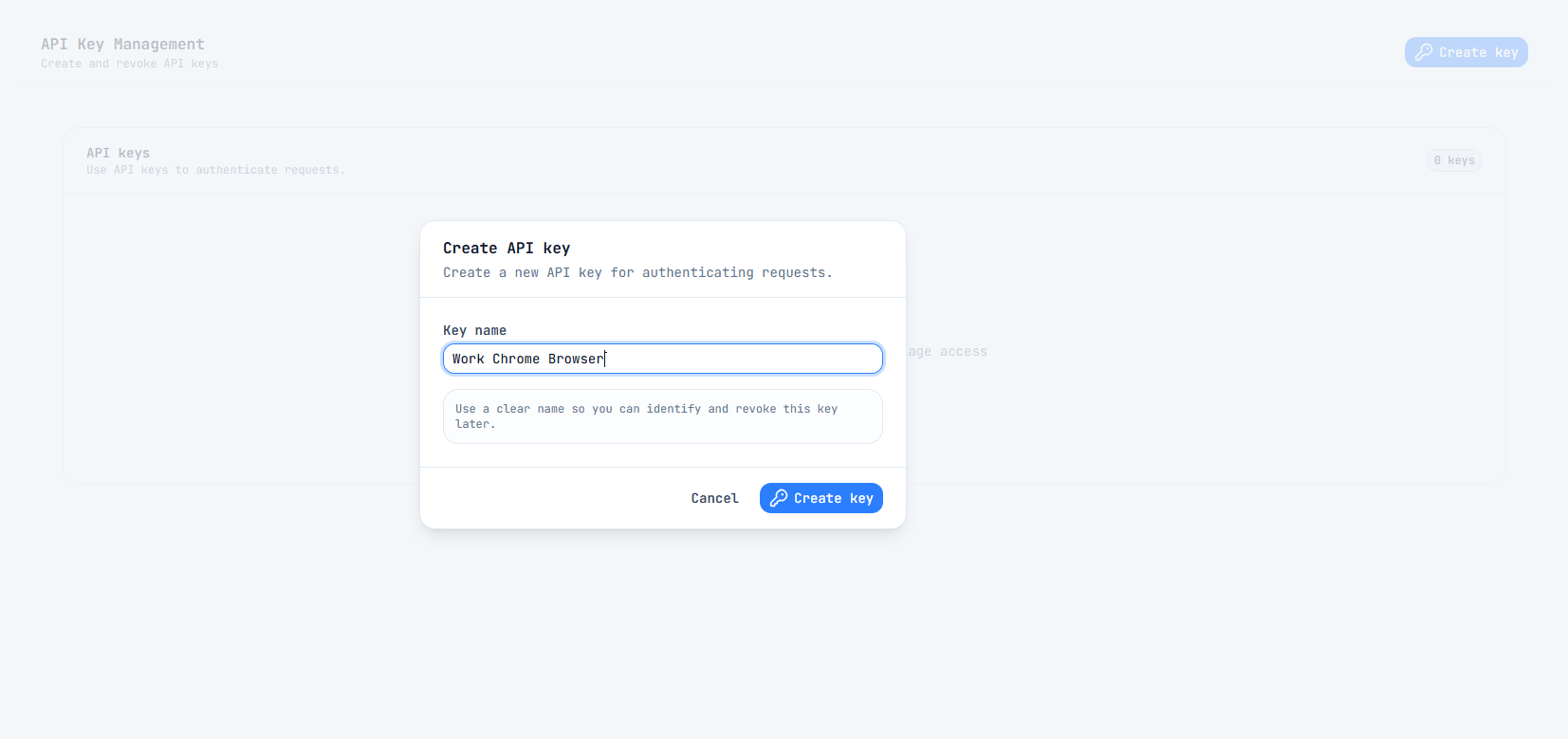
- Go to app.hellocyberlab.io/api-keys.
- Log in to your account.
- Click Create API Key.
- Name the key (e.g.,
Browser Extension). - Copy the generated key immediately.
Connect your account
Link the browser extension to your account workspace using the API key you generated.
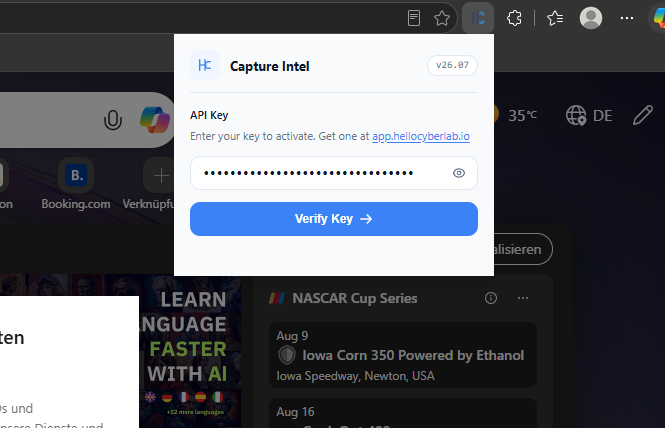
- Click the HC Capture Intel icon in your browser toolbar.
- Paste your API key into the API Key field.
- Click Verify Key to authenticate.
Configure Capture Mode
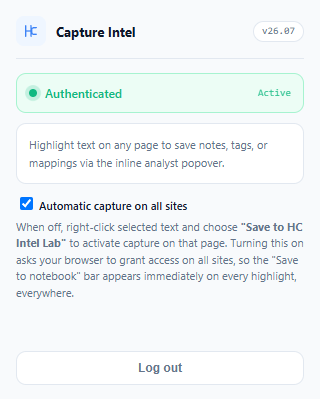
Choose how HC Capture Intel activates when browsing web pages: automatic capture across all sites or on-demand right-click activation.
Option A: Automatic Capture
Toggle ONGrants permissions across all sites so the floating "Save to notebook" bar appears instantly whenever you highlight text.
Option B: On-Demand Capture
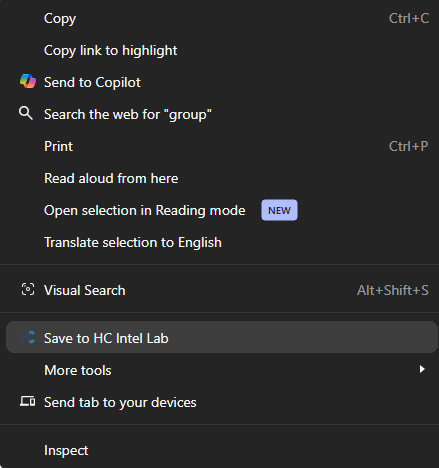
Toggle OFFKeeps extension permissions strictly on-demand. Right-click selected text and select "Save to HC Intel Lab" to trigger capture on the current page.
Highlight and capture intel
Start building structured threat intelligence directly from articles, reports, and threat feeds.
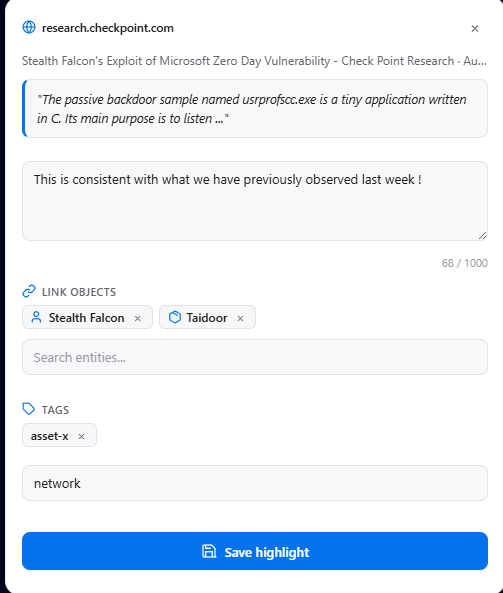
- Highlight any text on a webpage or file.
- Click the save to notebook icon on the floating toolbar.
- Add your notes, tags, or link to entities, threat actors & malware.
- Click Save to store the highlight directly into your account's Notebook.
Review Intel in Your Notebook
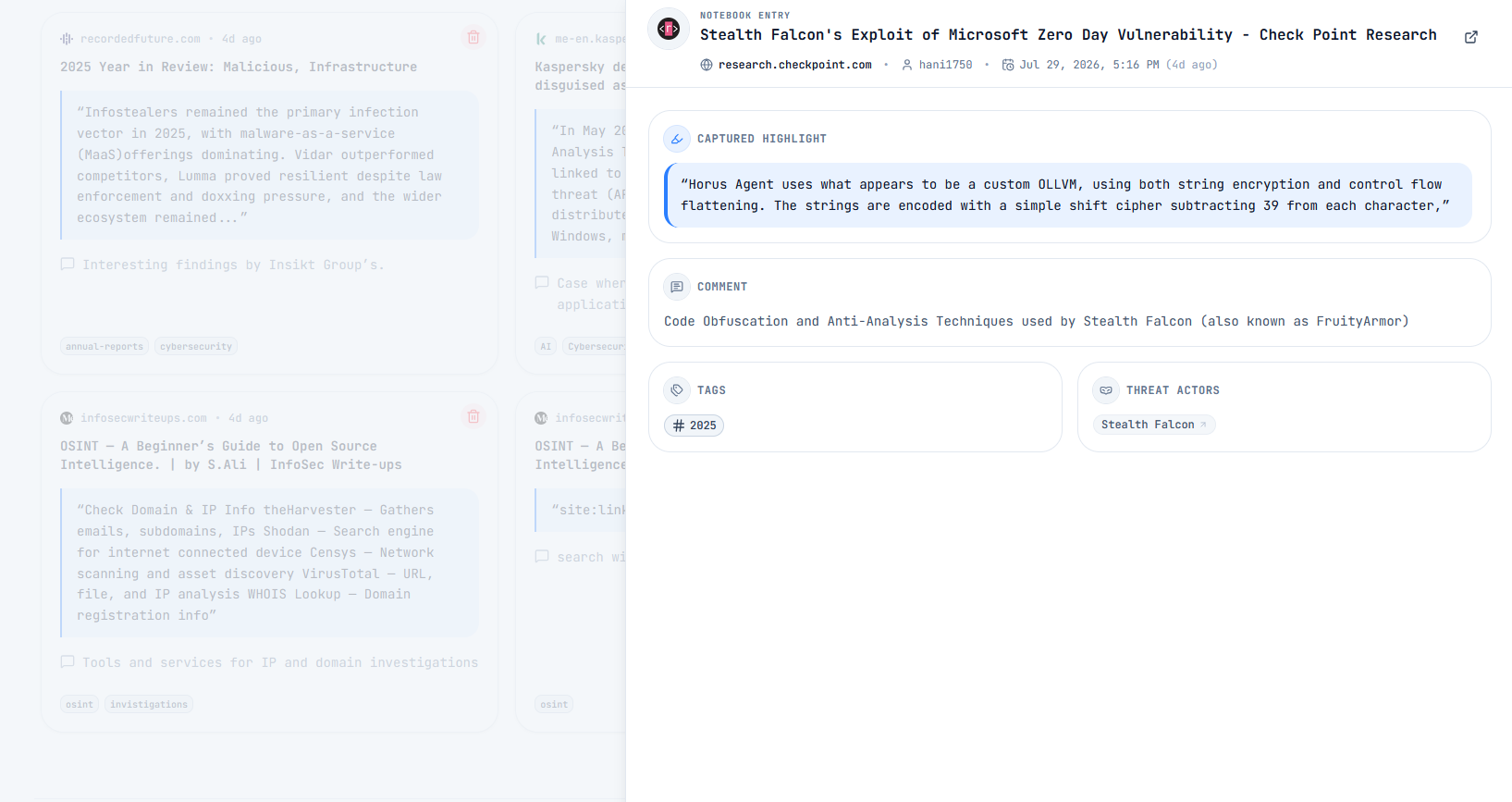
Once saved, all captured highlights, attached notes, tags, and entity links immediately sync to your account Notebook .
Head over to https://app.hellocyberlab.io/notebook to:
- Review full details: View the original snippet, domain source, timestamp, and context.
- Filter & Search: Quickly locate intel using tags, threat actors, or malware associations.
- Manage & Organize: Edit existing notes or clean up outdated entries as your investigation progresses.
Troubleshooting
Common solutions for Chromium extension setup issues.
Extension won't authenticate
Double-check that you copied the complete API key without extra whitespace.
Capture icon doesn't appear
Refresh the target web page after installing or re-connecting the extension.